
If you use a Fitbit with an Android phone, you can share your step data with GoVida through Health Connect.
The connection works like this:
Fitbit → Health Connect → GoVida
Follow the steps below to get set up.
Step 1 – Make sure your Fitbit is syncing
Before connecting to GoVida, open your Fitbit / Google health app and make sure your latest steps are showing.
If your latest activity is not showing in Fitbit, sync your Fitbit device first.
Step 2 – Open Health Connect
Android 14 or later
Go to:
Settings → Security & privacy → Privacy controls → Health Connect
Android 13 or earlier
You may need to install Health Connect from Google Play first.
Once installed, open Health Connect from your phone settings.
Step 3 – Check Fitbit is connected to Health Connect
Open Health Connect and select:
App permissions
You should see Fitbit / your Google health app listed as a connected app.
Make sure it has permission to share your activity data, including Steps.
What this should look like
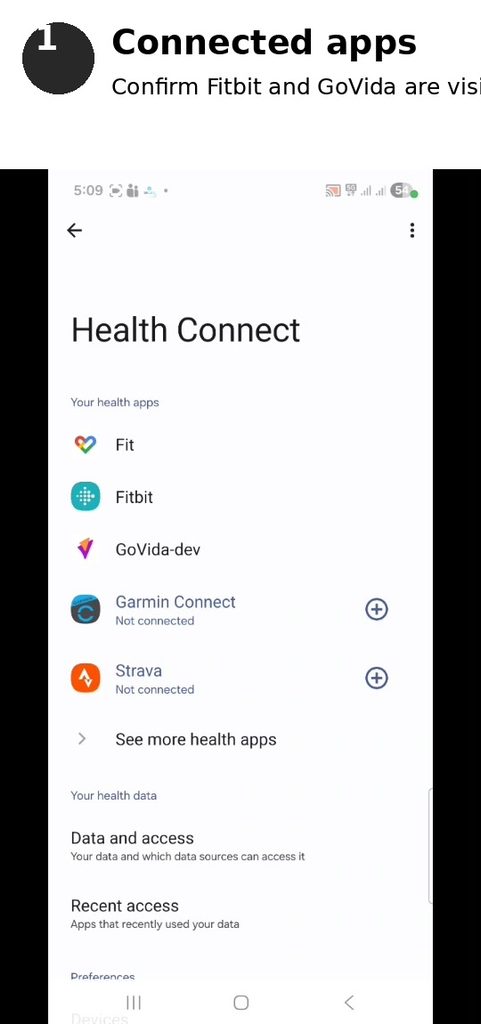
This screen confirms that your health apps are connected to Health Connect.
Step 4 – Connect GoVida
Open the GoVida app and follow the Health Connect connection instructions.
When Health Connect asks what GoVida can access:
Make sure Steps is switched ON.
Complete the connection.
You should now have:
Fitbit → Health Connect → GoVida
Step 5 – Check your step data is reaching Health Connect
If your steps are not appearing in GoVida, you can quickly check whether Fitbit is sending them to Health Connect.
Open Health Connect and select:
Data and access
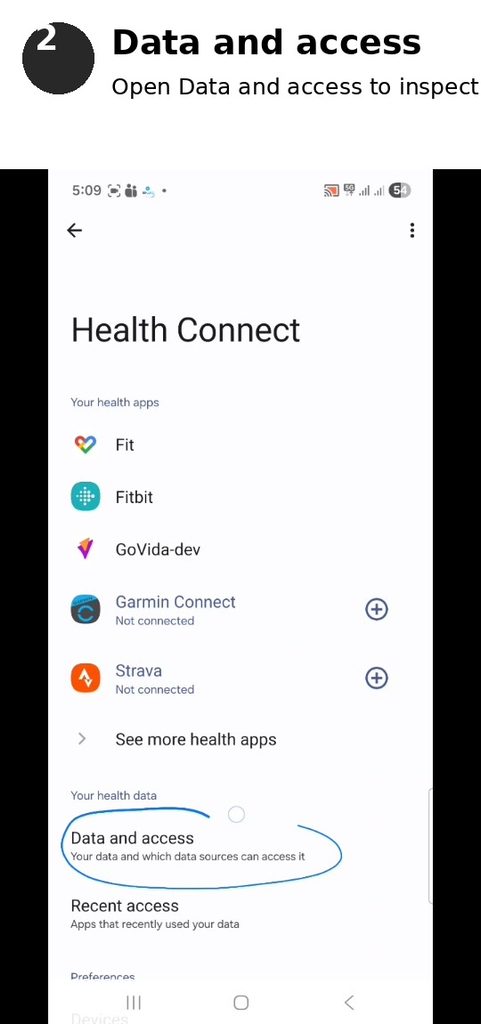
Then select:
Activity → Steps
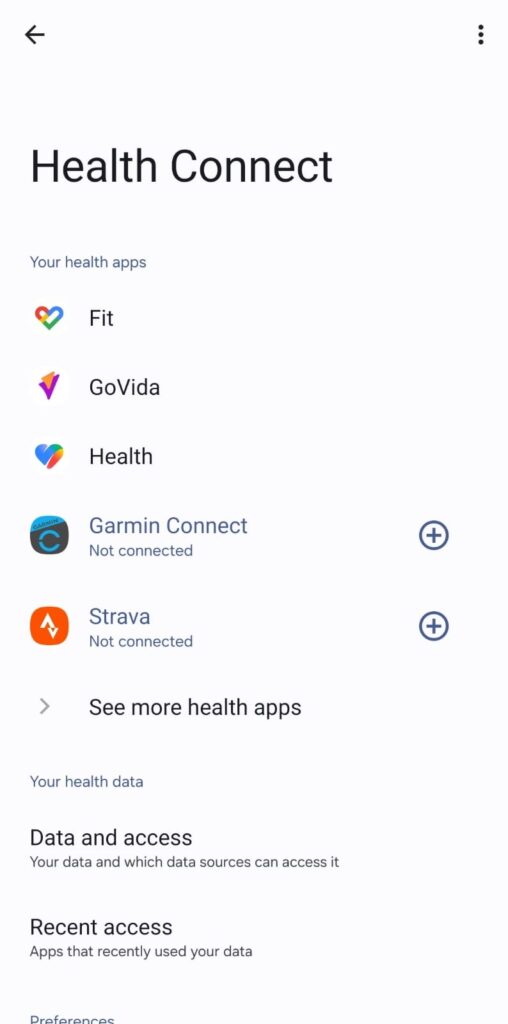
Select:
See all entries
You should now see recent step activity inside Health Connect.
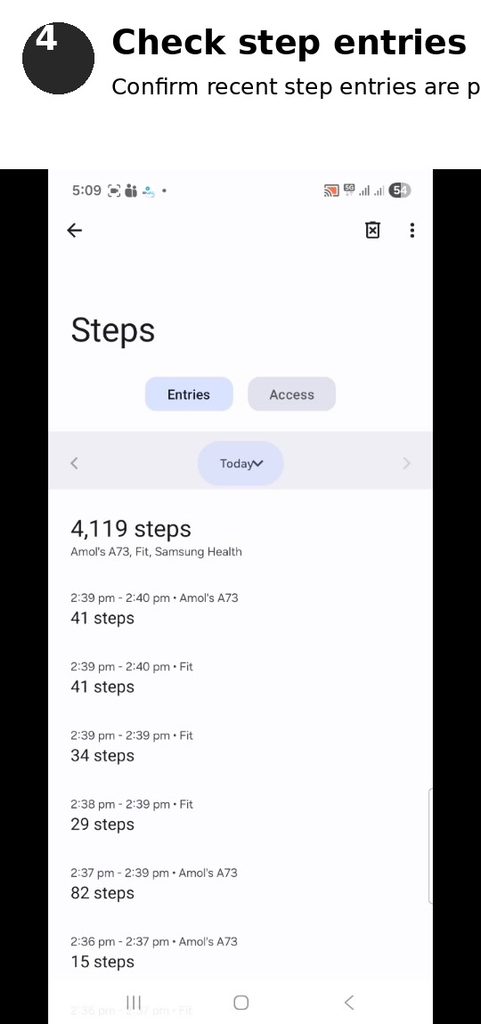
If you can see your recent steps here, this confirms that your activity is reaching Health Connect.
My Fitbit steps are not showing in GoVida – what should I do?
Work through these checks in order:
1. Check Fitbit
Open your Fitbit / Google health app.
Are your latest steps showing?
No: Sync your Fitbit device first.
Yes: Continue to the next check.
2. Check Health Connect
Go to:
Health Connect → Data and access → Activity → Steps → See all entries
Can you see recent step entries?
No: Check that Fitbit / your Google health app has permission to share Steps with Health Connect.
Yes: Continue to the next check.
3. Check GoVida permissions
Go to:
Health Connect → App permissions → GoVida
Make sure GoVida has permission to access Steps.
Then reopen GoVida and allow your activity to refresh.
Why can I see steps from more than one app?
This is normal.
Your Android phone may record steps itself, while your Fitbit also records steps.
Health Connect can receive activity from multiple sources and manages these sources when calculating your activity data.
You do not need to manually add the different step entries together.
Where do I find Health Connect?
On most newer Android phones:
Settings → Security & privacy → Privacy controls → Health Connect
On older Android phones, you may first need to install Health Connect from Google Play.
Can I use Health Connect on an iPhone?
No.
Health Connect is for Android devices.
If you use an iPhone, connect your activity to GoVida using Apple Health instead.
Still having trouble? please check:
- My Fitbit is syncing and showing today’s activity.
- Fitbit / my Google health app is connected to Health Connect.
- Steps are visible inside Health Connect.
- GoVida is connected to Health Connect.
- GoVida has permission to access Steps.
- My Fitbit app and GoVida app are up to date.
If your steps are visible in Health Connect but are still not appearing in GoVida, please contact support@govida.io and include a screenshot of:
Health Connect → Activity → Steps → See all entries