
Connecting Google Health to GoVida allows your steps and exercise activity to be automatically recorded in the GoVida app.
Are you a Fitbit user?
If you use a Fitbit device, you should connect Google Health to GoVida.
Make sure your Fitbit activity is syncing with your Google Health account, then follow the instructions below to connect Google Health to GoVida.
Step 1: Open Track your Activity
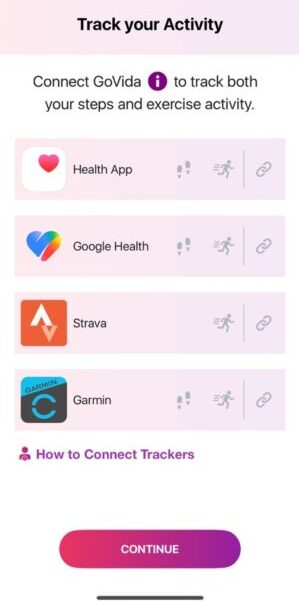
In the GoVida app, go to the Tracker screen.
Here you’ll see the different apps that can be connected to GoVida, including Google Fit, Health Connect, Google Health, Garmin and Strava.
Fitbit users: Select Google Health to connect your Fitbit activity to GoVida.
Step 2: Connect Google Health
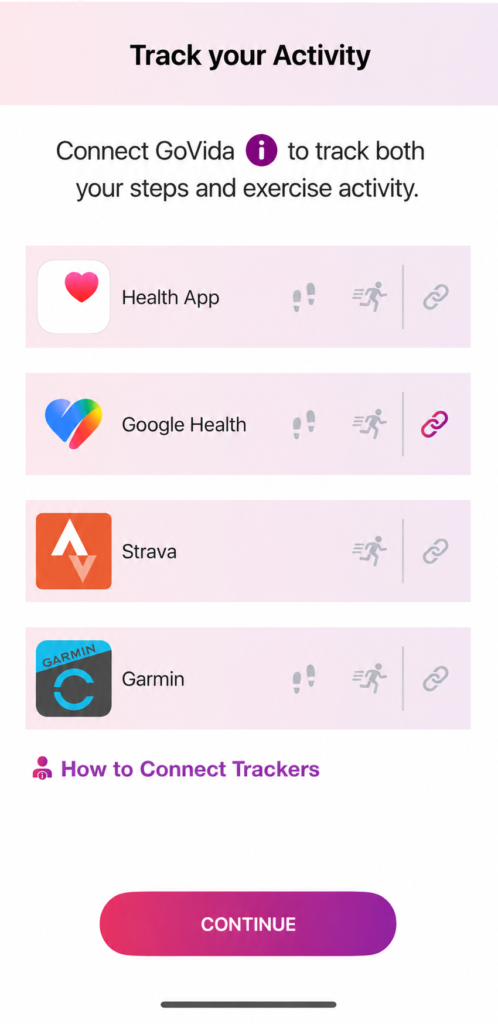
Find Google Health and tap the link icon on the right-hand side.
This will start the process of connecting your Google Health account to GoVida.
Step 3: Sign in with Google
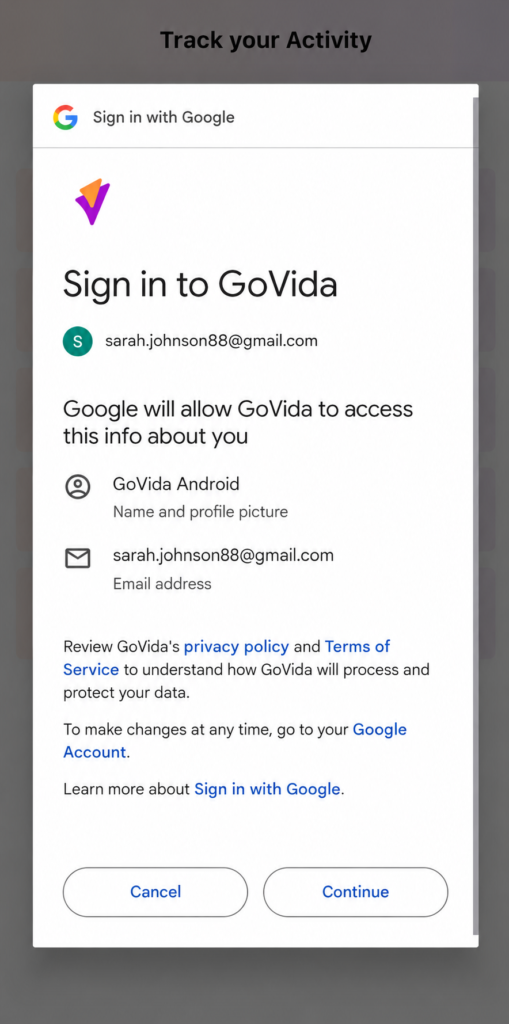
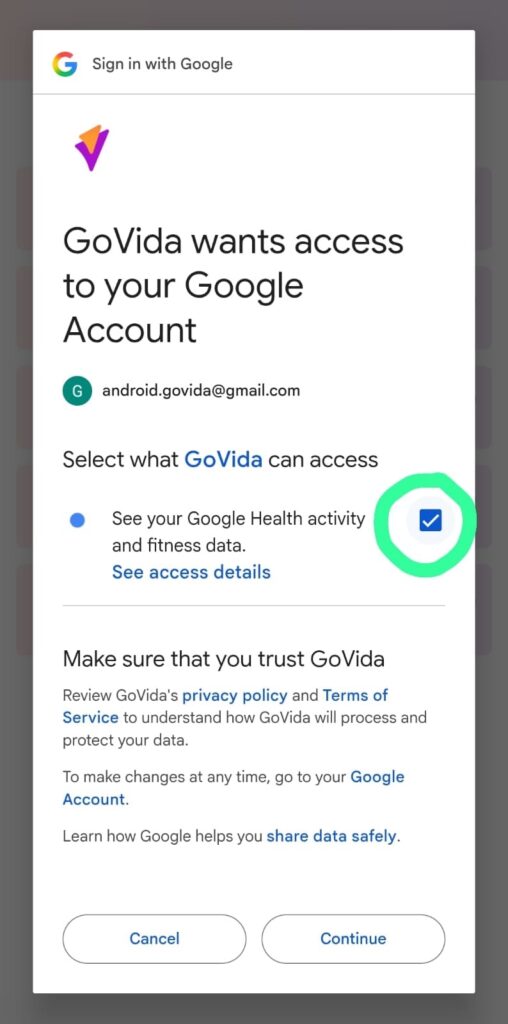
A Google sign-in screen will appear.
Check that the correct Google account is displayed and tap Continue.
We recommend using the Google account associated with your Google Health activity.
Step 4: Allow GoVida to Access Your Activity
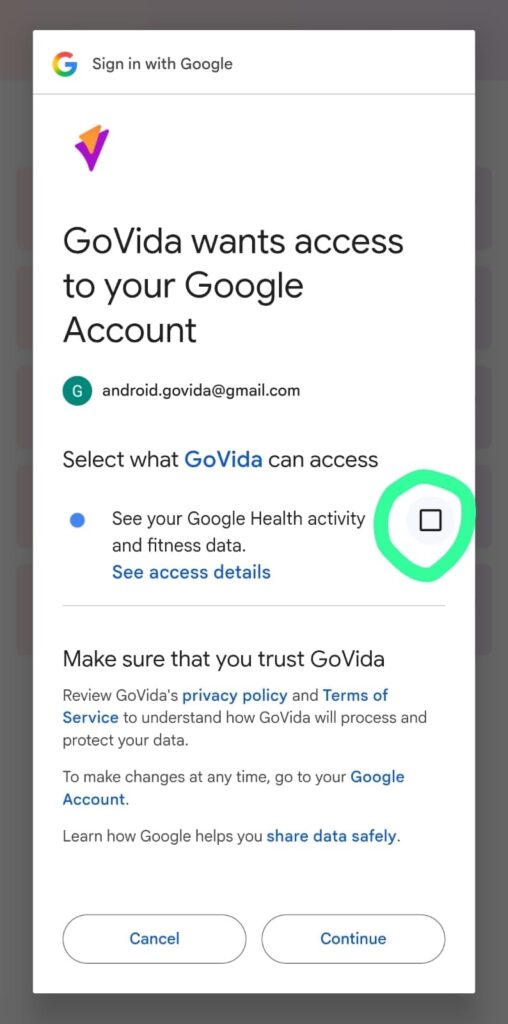
Google will now ask you to choose what information GoVida can access.
Look for:
“See your Google Health activity and fitness data.”
Select the checkbox next to this permission.
Step 5: Select the Permission and Continue
Tap the checkbox next to “See your Google Health activity and fitness data.”
A blue tick should appear in the box.
Once selected, tap Continue at the bottom of the screen.
This permission allows GoVida to receive your activity information from Google Health.
Step 6: Check Your Connection
Once you’ve completed the Google permissions, you’ll be returned to GoVida.
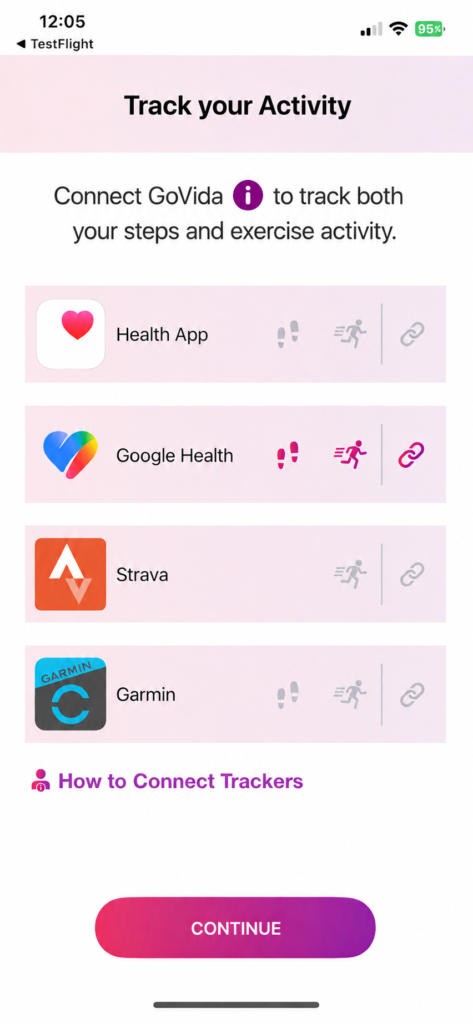
Look at the Google Health row on the Track your Activity screen.
Once connected, the link icon will be highlighted. Tap the footsteps and exercise icons to enable them; when active, all three icons will be highlighted as shown below.
This confirms that Google Health is connected to GoVida and can share your activity.
Frequently Asked Questions
I use Fitbit. Which tracker should I connect?
If you use a Fitbit device, select Google Health from the Track your Activity screen in GoVida.
Make sure your Fitbit activity is syncing with your Google Health account first. You can then connect Google Health to GoVida using the steps above.
How do I know if Google Health is connected?
Go to Track your Activity in the GoVida app and look at the Google Health row.
When your connection is active, the steps, exercise and link icons will be highlighted rather than grey.
If the icons remain grey, check your connection and permissions.
What information does GoVida access?
When connecting Google Health, Google will ask you to give GoVida permission to access your Google Health activity and fitness data.
You need to select this permission for your eligible activity data to sync with GoVida.
You remain in control of the permissions you give GoVida through your Google account.
Why aren’t my steps or activities appearing in GoVida?
If your activity isn’t appearing, try the following:
- Check that your wearable or activity tracker has synced with Google Health.
- Open GoVida and check that Google Health is still connected.
- Make sure the steps and exercise icons are highlighted on the Google Health row.
- If necessary, disconnect and reconnect Google Health.
- When reconnecting, make sure you select “See your Google Health activity and fitness data” when Google asks for permission.
It can sometimes take a little time for recently recorded activity to sync between services.
My Google Health link icon is highlighted, but my steps or exercise icons aren’t. What does this mean?
This may indicate that your Google Health account has been connected, but GoVida does not have all the permissions required to access your activity data.
Try reconnecting Google Health and make sure the activity and fitness data permission is selected during the Google connection process.
Can I change my Google Health permissions later?
Yes. Google allows you to review and manage the access you’ve given to connected apps through your Google account.
If you remove GoVida’s access to your Google Health activity data, your activity may stop syncing with GoVida.
Still having problems?
If you’re still having trouble connecting your tracker, tap How to Connect Trackers on the Track your Activity screen in GoVida for additional guidance.
When contacting support, it can also be helpful to include a screenshot of your Tracker screen so the team can see the current status of your connection.